 Word-processing techniques
Word-processing techniques
Word-processing techniquesThis page contains minimal instructions for some techniques which make your word processor more than just an electric typewriter. Instructions are provided for Corel WordPerfect 8 and Microsoft Word 97.
Keep in mind that there are other ways of doing the same things, and that there are many other possibilities for things like numbering styles.
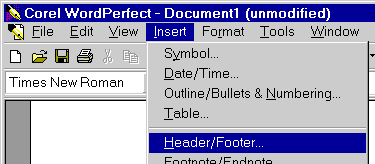 Select Insert
  Header/Footer....
(In WP 6.1, use rather than
.)
Header/Footer....
(In WP 6.1, use rather than
.)
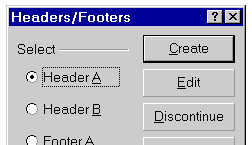 Select and click on
.
You'll be put into a special mode for creating or editing
headers.
Select and click on
.
You'll be put into a special mode for creating or editing
headers.
 on the special Property Bar) to
return to the normal editing mode.
on the special Property Bar) to
return to the normal editing mode.
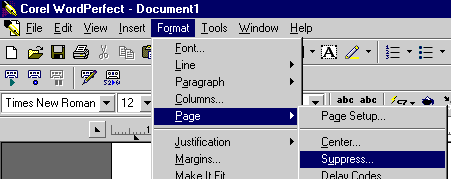 To suppress the printing of the header on the first page,
select Format
Page Suppress...
To suppress the printing of the header on the first page,
select Format
Page Suppress...
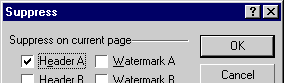 In the dialogue box, select
and then click on
.
In the dialogue box, select
and then click on
.
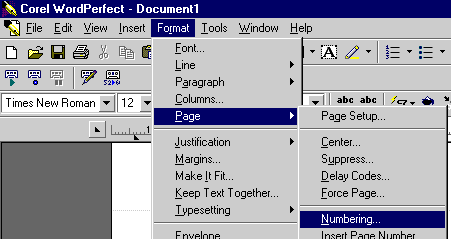 Select Format
Page Numbering....
Select Format
Page Numbering....
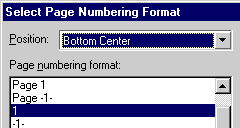 In the
dialogue box, select the desired position and style and click on
.
Page Suppress..., select
and then click on
.
In the
dialogue box, select the desired position and style and click on
.
Page Suppress..., select
and then click on
.
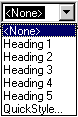 Use the drop-down Styles menu
  on the toolbar to select
 Heading 1 for
headings, Heading 2 for subheadings, etc.
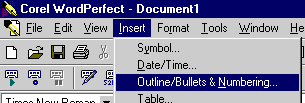 Select Insert
Outline/Bullets & Numbering....
Select Insert
Outline/Bullets & Numbering....
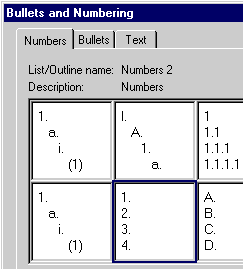 In the dialogue
box, select the tab
and select one of the styles,
e.g., the one named
, which produces
a single level numbered 1., 2., 3. ... Click on
.
The first heading number will be inserted into
your document automatically.
In the dialogue
box, select the tab
and select one of the styles,
e.g., the one named
, which produces
a single level numbered 1., 2., 3. ... Click on
.
The first heading number will be inserted into
your document automatically.
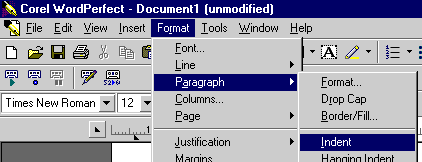 At the start of a blank line, select
Format
Paragraph Indent.
At the start of a blank line, select
Format
Paragraph Indent.
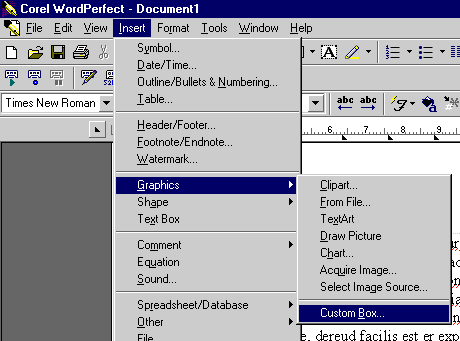 Select Insert
Graphics Custom Box.
Select Insert
Graphics Custom Box.
 In the dialogue box,
select a box style and click .
(For a single box
it doesn't really matter which style you select.) An empty box
appears, and is automatically selected with its eight
handles showing. The existing text wraps around the box by default.
In the dialogue box,
select a box style and click .
(For a single box
it doesn't really matter which style you select.) An empty box
appears, and is automatically selected with its eight
handles showing. The existing text wraps around the box by default.
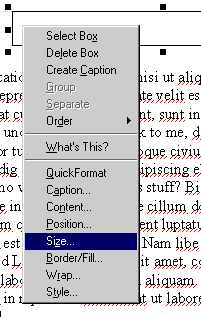 To set the size of the box,
position the pointer over it
and press the right mouse button. From the resulting popup menu select
.
To set the size of the box,
position the pointer over it
and press the right mouse button. From the resulting popup menu select
.
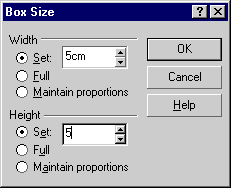 In the dialogue box,
select the
radio buttons for
both and
and specify
the desired values, e.g., 5 cm x 5 cm.
Click on .
In the dialogue box,
select the
radio buttons for
both and
and specify
the desired values, e.g., 5 cm x 5 cm.
Click on .
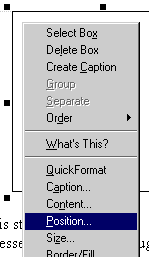 To set the position of the box,
again use the right mouse button to invoke the popup menu
and then select
.
To set the position of the box,
again use the right mouse button to invoke the popup menu
and then select
.
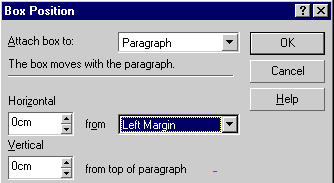 In the dialogue box,
specify the desired position, e.g., 0 cm from the left margin.
Click on .
In the dialogue box,
specify the desired position, e.g., 0 cm from the left margin.
Click on .
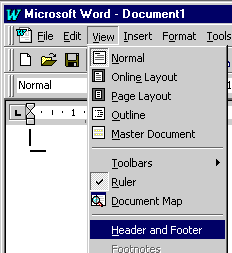 Select View Header/Footer....
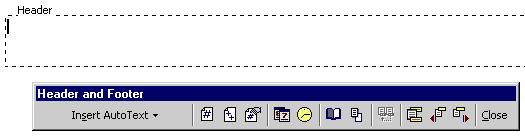 Enter the text for your header into the special header area.
 on the
toolbar, select the tab,
on the
toolbar, select the tab,
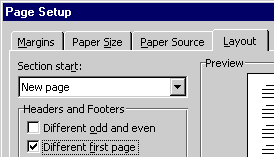 put a check mark in the
check box, and then
click .
put a check mark in the
check box, and then
click .
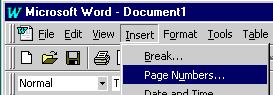 Select Insert
Page Numbers ....
Select Insert
Page Numbers ....
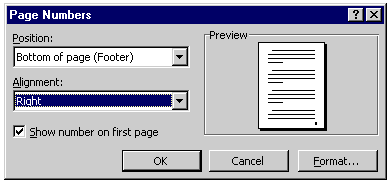 In the dialogue box,
choose whether you want the page numbers in the header or footer,
and whether you want them aligned left, right, etc.
In the dialogue box,
choose whether you want the page numbers in the header or footer,
and whether you want them aligned left, right, etc.
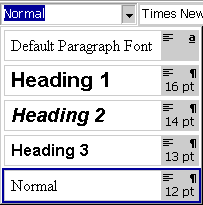 Use the drop-down Styles menu
 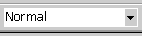 on the toolbar to select
Heading 1 for headings, Heading 2
for subheadings, etc.
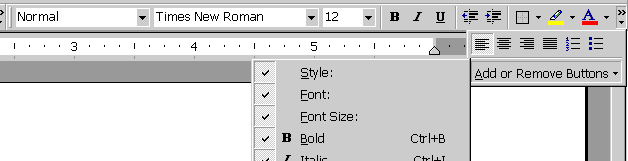
In Word 2000, if the drop-down Styles menu is not on the
toolbar by default, click on the More buttons icon
 .
Then click on
.
Then click on
Add or Remove Buttons and make sure that
Style: is selected. There seems to be a bug in at least some
versions, so the Styles menu at first doesn't appear on the toolbar
even if selected.
Unselecting it and then selecting it again seems to resolve the problem.
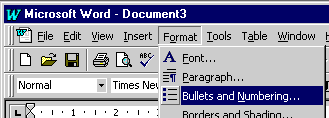 Select Format
Bullets and Numbering ....
Select Format
Bullets and Numbering ....
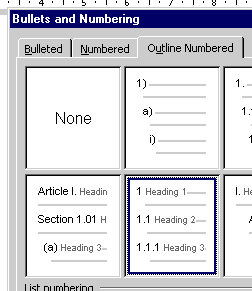 In the
dialogue box, select the tab
and then select one of the numbering styles that includes
the word .
Click on .
In the
dialogue box, select the tab
and then select one of the numbering styles that includes
the word .
Click on .
 To create another heading, click on the
style drop-down list
To create another heading, click on the
style drop-down list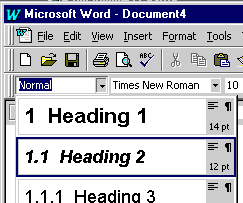 and then select the desired level of heading.
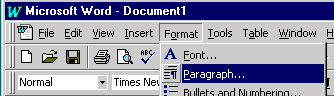 Select Format
Paragraph ....
Select Format
Paragraph ....
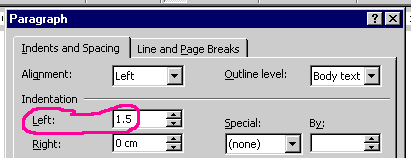 In the dialogue box,
select the tab
and set the desired value for the indentation of the paragraph
from the left margin
e.g., 1.5 cm from the left margin.
In the dialogue box,
select the tab
and set the desired value for the indentation of the paragraph
from the left margin
e.g., 1.5 cm from the left margin.
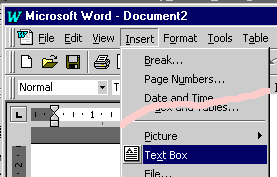 Select Insert
Text Box.
Select Insert
Text Box.
 .
Click and drag to create a box where you want it to appear.
.
Click and drag to create a box where you want it to appear.
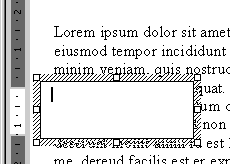 The new box is automatically selected with its eight
handles showing.
Notice that the new box covers up the text behind it.
The new box is automatically selected with its eight
handles showing.
Notice that the new box covers up the text behind it.
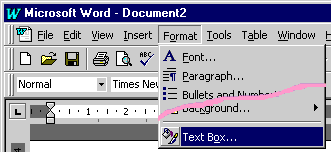 To adjust the size, position and text wrapping of the box,
select Format
Text Box ....
To adjust the size, position and text wrapping of the box,
select Format
Text Box ....
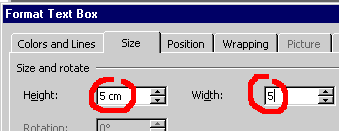 In the dialogue box,
select the tab and specify the desired
and
for your box, e.g., 5 cm by 5 cm.
In the dialogue box,
select the tab and specify the desired
and
for your box, e.g., 5 cm by 5 cm.
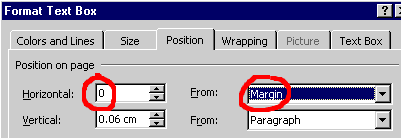 Select the tab and specify
the desired position, e.g., 0 cm from the left margin.
Select the tab and specify
the desired position, e.g., 0 cm from the left margin.
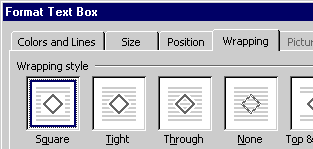 To wrap the text around the box, rather than hiding it
behind the box,
select the tab and specify
the desired style, e.g., wrapping.
To wrap the text around the box, rather than hiding it
behind the box,
select the tab and specify
the desired style, e.g., wrapping.

Last substantive modifications 2002 Mar 16
Last modified: Tue, 2007 Mar 6 20:32:02